

-
Choose an online consult
In the left-hand menu, choose Start consult. The question is “How are you seeing this patient?” Choose Online consult — “Open your video room and generate the letter.” In person or by phone is the other choice, covered in In-person and phone.
You need a calling room on your account. If you don’t have one, ask a manager.
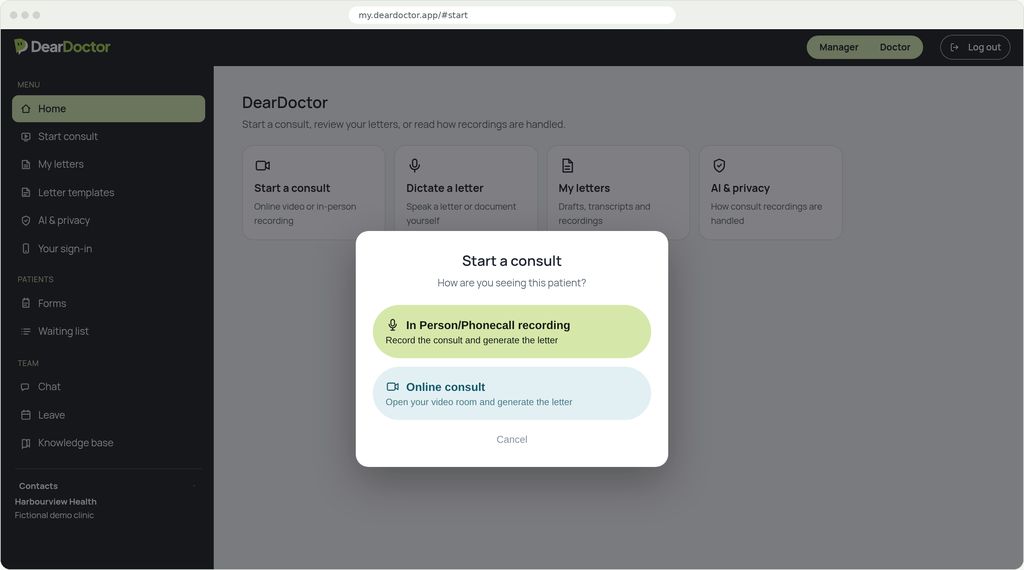
Start a consult: choose Online consult for a video call. Fictional demo clinic. Not a real patient or clinic record. -
Send the patient link
Your video room opens on a pre-call screen. Copy the room link and send it to the patient. They open it in the browser on a phone, tablet or computer. There is nothing for them to install.
Before you go in, you can choose the letter type, record prep notes, and use Test your audio & video. Prep notes here use your microphone only. They are not the consult recording, and they are not sent into the call, so the patient cannot hear them. Then choose Start consult.
-
What the patient does
On the link, they enter their first and last name. The browser then asks for the camera and microphone. The camera is optional: they can join with audio only, and a working microphone is what the consult needs. If the link opened inside an email or a messaging app, those built-in browsers can block the microphone, so they should open the link in Safari or Chrome.
They then wait until you admit them. While they wait, the page checks the camera, microphone, speaker and connection, and they can change which device is used. They are not on the consult until you admit them.
-
Admit them
When they arrive, your screen shows that someone is waiting. Choose Admit. Admitting can take a moment while they connect. If it doesn’t go through, the Admit control stays so you can try again. You can mute, turn the camera off, and change camera, microphone or speaker from the call controls.
In-call messages are for quick practical notes, such as “I can’t hear you”. Keep personal and medical conversation for the consult itself, not that message box.
-
Ask, then record their answer
Once the patient is actually connected, DearDoctor shows a recording-consent question so you can ask out loud first. Read this to them:
“Before we begin, I use an AI scribe that records and transcribes our call so I can give you my full attention. Is it okay with you if I record?”
Tick I have read this to the patient and they agree to this statement only if that is true. Patient accepts AI + recording stays unavailable until the box is ticked. Audio is recorded only to draft the clinical letter. Video is not recorded.
If they say no, choose Patient declines. DearDoctor stops the recording. That audio is not transcribed, and no letter is drafted from it. Document the consult yourself. If the page says the no was not saved, tap Patient declines again before you go on. A no wins if you tap it while a yes is still saving.
There is no path that skips this question and still files a letter. Consent is your clinic’s process. Wording you can also use with patients is on the data page. Tell them that consults are transcribed in Australia.
-
End the call
When the consult is finished, choose End call & generate letter. DearDoctor does not type along during the call. The transcript and the draft letter come afterwards. You review them in My letters. Nothing is filed without you.
A third person, such as a support person or interpreter, is a separate link. They still agree, and they still wait for you to admit them. See A third person.
Start a video consult
The patient joins from a link in the browser. No app. They are not in the consult until you admit them. Audio is recorded only to draft the letter, and only if they agree.